
In the Automatic Import mask, you can configure automatic runs that periodically create Dynamics 365 imports. In the configuration you define whether this import should run daily, weekly or monthly.
If the import is started daily, then only one day's transactions can be imported. In this case, you can select that the transactions from yesterday, the day before yesterday or the two days before yesterday should be imported on that day. It is recommended to import the transactions from the day before yesterday. If transactions from yesterday are imported, apaleo can still correct these bookings on the next day.
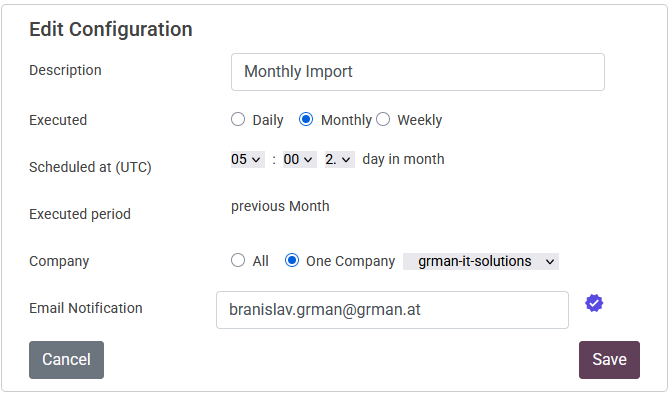 If the import is started weekly, it must first be defined on which day of the week the import will be started. Depending on this, the app provides the options for which days/week the import should be started. For example, if it is defined that the import should be started on Monday, then you can choose one of the following options in the execution period:
- Monday - Sunday
- Sunday - Saturday
- Saturday - Friday
If the import is started monthly, then only the transactions from the last month can be imported. In this case, you define whether the import should run on the 1st, 2nd, 3rd, 4th or 5th day of the following month.
In all three options, you also define the time when the import should be created. The time must be entered as UTC time. It must be ensured that the Night Audit is finished at this time.
The configuration can be defined for one Dynamics 365 company or for all. Even if the configuration is set for all Dynamics 365 companies, the imports are created for each Dynamics 365 company separately. The imported data will be added in Dynamics 365 into the journal "Apaleo". You can find it in menu Finance->General Journals.
If you want to be notified when the import was created, you must type the email notification address in the field "Email Notification". After saving the configuration, you will receive an email, to confirm the email address. If you don't receive the confirmation email, you can create a new one with the button "Confirmation Email".
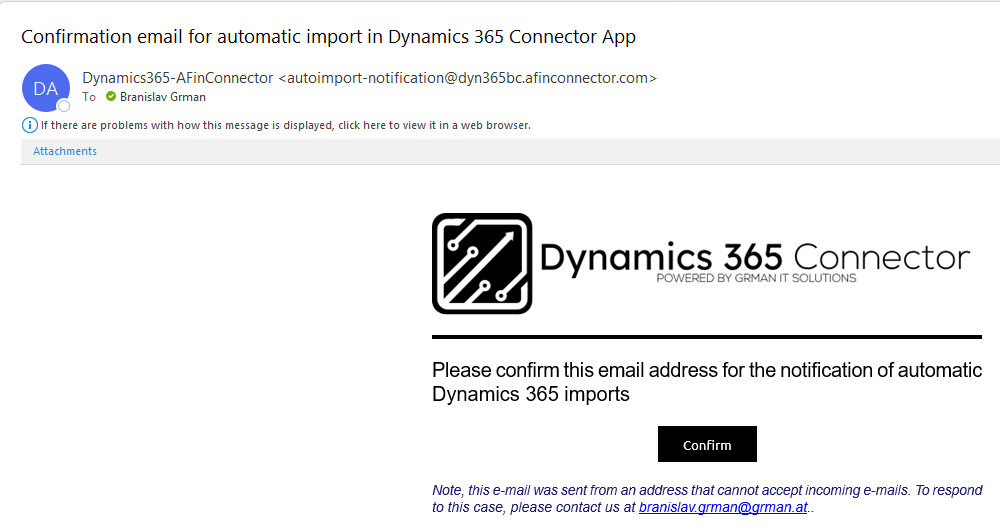
You confirm the email address with the click on the button "Confirm"If the email address is confirmed (a blue icon next to the email address in the detail mask) you will be notified after each automatic import.
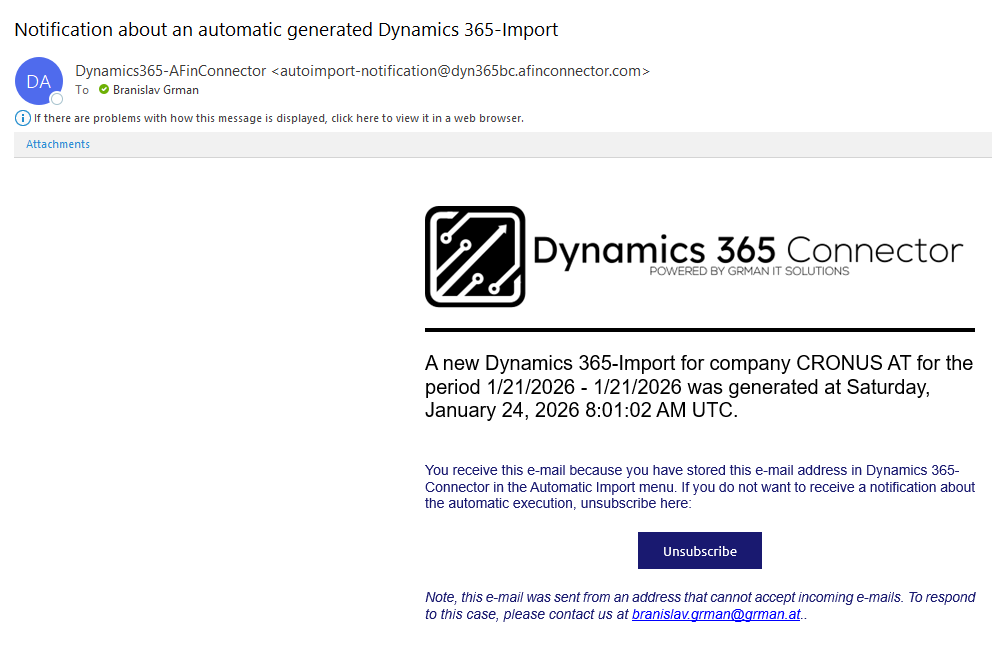
You can set the notification using the Unsubscribe button. Clicking the Unsubscribe button will delete the email address in the configuration. You can delete the email address yourself in the configuration. This means you will no longer receive notifications.
The last ten executions can be displayed using the “Last Runs” link. In the list you can see when the executions took place, for which Dynamics 365 company and with what status. If there is a warning or error, the error/warning text is displayed.